Workflows and pipelines
Workflows and pipelines commonly use service principals, authenticating with either a secret or preferably using an OpenID Connect federated credential.
Introduction
This scenario is for when you no longer have the secret or cert for a service principal, but you do have permission to create or modify pipelines or workflows in your CI/CD platform. These commonly use service principals when interacting with Azure environments. Historically they would have the client secret stored as a pipeline secret whereas it is now increasingly common to leverage OpenID Connect (OIDC) using a federated workload credential.
We’ll start with example workflows, but scroll down if you want some additional information on OpenID Connect federated credentials for service principals and managed identities.
Example workflows
These are OpenID Connect examples, but the Partner Admin Link steps can be easily inserted into existing workflows or adapted for secret based auth.
# Partner Admin Link using the Azure CLI with OpenID Connect

name: Configure PAL using the Azure CLI
on:
  workflow_dispatch:
    inputs:
      action:
        type: choice
        description: 'Action to perform'
        default: 'Create'
        options:
          - Create
          - Delete
        required: true
      partnerId:
        description: 'Partner ID'
        required: true

permissions:
      id-token: write
      contents: read

jobs:
  PAL:
    runs-on: ubuntu-latest
    steps:
    - name: Login to Azure using OIDC
      uses: azure/login@v2
      with:
        tenant-id: ${{ vars.ARM_TENANT_ID }}
        client-id: ${{ vars.ARM_CLIENT_ID }}
        allow-no-subscriptions: true

    - name: ${{ github.event.inputs.action }} the Partner Admin Link
      uses: azure/cli@v2
      with:
        azcliversion: latest
        inlineScript: |
          uri="https://management.azure.com/providers/Microsoft.ManagementPartner/${{ github.event.inputs.partnerId }}?api-version=2018-02-01"
          body='{"properties":{"partnerId":"${{ github.event.inputs.partnerId }}"}}'

          if [ "${{ github.event.inputs.action }}" = "Create" ]; then
            method=$(az rest --method get --output none --url "$uri" 2>/dev/null && echo patch || echo put)
            az rest --method "$method" --output jsonc --url "$uri" --body "$body"
          else
            az rest --method delete --output jsonc --url "$uri"
          fi
# Partner Admin Link using PowerShell with OpenID Connect

name: Configure PAL using PowerShell
on:
  workflow_dispatch:
    inputs:
      action:
        type: choice
        description: 'Action to perform'
        default: 'Create'
        options:
          - Create
          - Delete
        required: true
      partnerId:
        description: 'Partner ID'
        required: true

permissions:
      id-token: write
      contents: read

jobs:
  PAL:
    runs-on: ubuntu-latest
    steps:
    - name: Login to Azure using OIDC
      uses: azure/login@v2
      with:
        tenant-id: ${{ vars.ARM_TENANT_ID }}
        client-id: ${{ vars.ARM_CLIENT_ID }}
        allow-no-subscriptions: true
        enable-AzPSSession: true

    - name: ${{ github.event.inputs.action }} the Partner Admin Link
      uses: azure/powershell@v2
      with:
        azPSVersion: latest
        inlineScript: |
          Install-Module -Name Az.ManagementPartner -Repository PSGallery -Force
          if ('${{ github.event.inputs.action }}' -eq 'Create') {
            $partner = Get-AzManagementPartner -ErrorAction SilentlyContinue
            if ($null -eq $partner) {
              New-AzManagementPartner -PartnerId ${{ github.event.inputs.partnerId }}
            } else {
              Update-AzManagementPartner -PartnerId ${{ github.event.inputs.partnerId }}
            }
          } else {
            Remove-AzManagementPartner -PartnerId ${{ github.event.inputs.partnerId }}
          }
Example .gitlab-ci.yml file with a manual step.
spec:
  inputs:
    action:
      description: "Action to perform (e.g. link, unlink)"
      default: "link"
      options:
        - link
        - unlink
---
stages:
  - example

variables:
  PARTNER_ID: "31415927" # Override this in GitLab CI/CD variables if you need a different Partner ID.
  ACTION: $[[ inputs.action ]]

partner_admin_link:
  stage: example
  image: mcr.microsoft.com/azure-cli:latest
  id_tokens:
    AZURE_FEDERATED_TOKEN:
      aud: api://AzureADTokenExchange
  rules:
    - when: manual
  script:
    - |
      az login --service-principal --tenant "$AZURE_TENANT_ID" --username "$AZURE_CLIENT_ID" --federated-token "$AZURE_FEDERATED_TOKEN"

      uri="https://management.azure.com/providers/Microsoft.ManagementPartner/partners/${PARTNER_ID}?api-version=2018-02-01"
      body='{"properties":{"partnerId":"${PARTNER_ID}"}}'

      if [  "$ACTION" = "link" ]; then
        method=$(az rest --method get --output none --url "$uri" 2>/dev/null && echo patch || echo put)
        az rest --method "$method" --output jsonc --url "$uri" --body "$body"
      else
        az rest --method delete --output jsonc --url "$uri"
      fi

      echo "Partner Admin Link request completed for partner ${PARTNER_ID}."
Note that the az login format for a service principal with a password is:
az login --service-principal --tenant "$AZURE_TENANT_ID" --username "$AZURE_CLIENT_ID" --password "$AZURE_CLIENT_SECRET"
OpenID Connect federated credentials
With OpenID Connect the service principal uses a federated credential to define the trust relationship to another identity provider and the context in which that is valid. This is far more secure than having a client secret that may be used for manual authentication, exactly as shown in the section above. (Removing the maintenance overhead of rotating secrets is another benefit.)
We’ll first see how to view them for service principals and for managed identities, and then cover a few example cloud CI/CD platforms.
Viewing federated credentials
-
Open the Entra admin portal
-
Open Entra ID > App Registrations
-
Click on All applications, filter the app registrations using the displayName or appId / clientId, and select ℹ️ If you don’t know the appId then you can search the Enterprise apps for the service principal’s objectId and retrieve the appId from there.
-
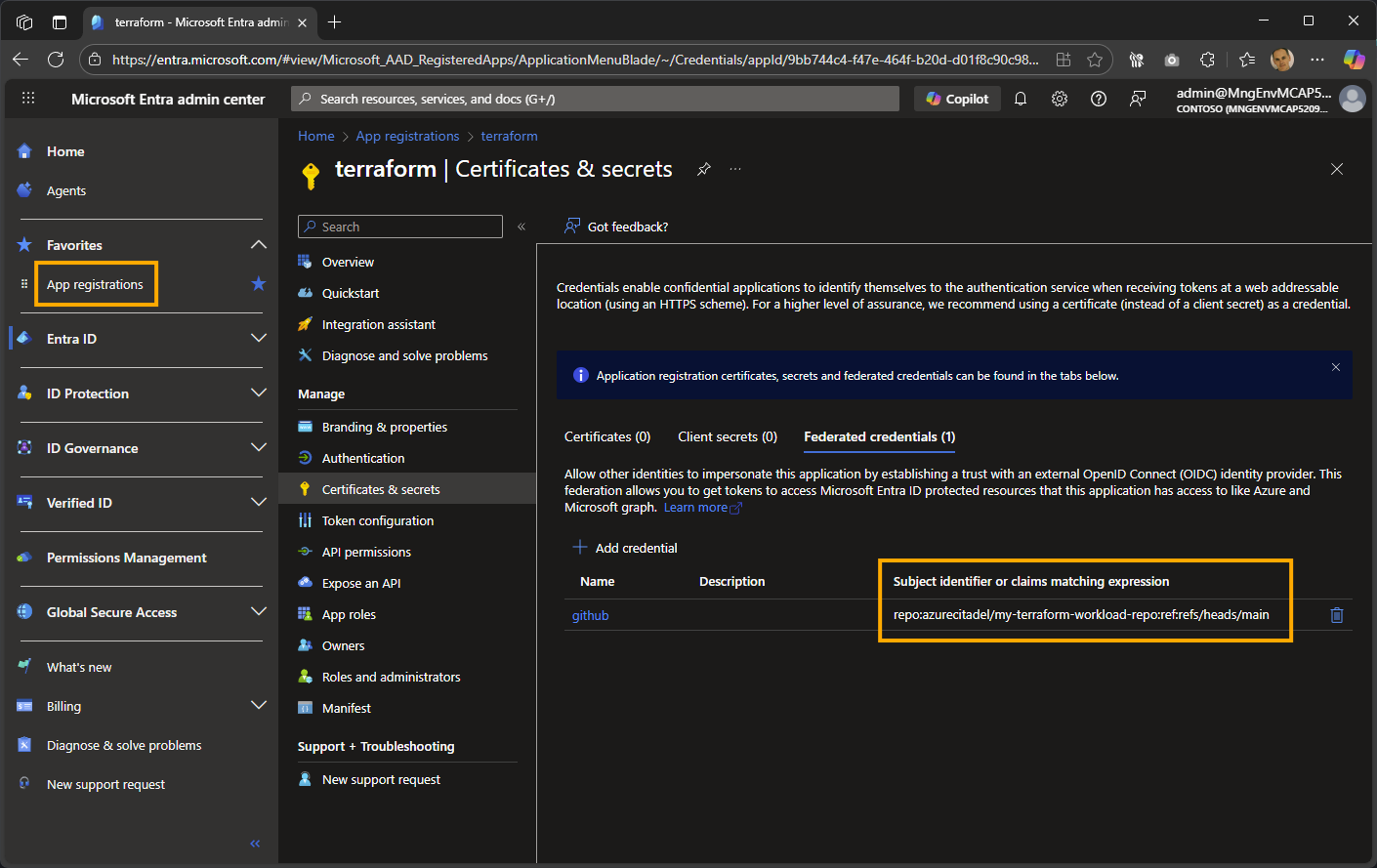
Click on Certificates and secrets to view the federated credential’s Subject identifier or claims matching expression
The example below shows a federated credential for GitHub.
-
Open the Azure portal
-
Open Managed Identities or search for Managed Identities in the global search bar.
-
Select the relevant user-assigned managed identity (UAMI), or create one if needed.
-
Open Federated credentials in the left menu.
-
Review the Subject identifier or claims matching expression for the OIDC trust relationship.
The example below shows a federated credential for GitLab.

Example federated credentials
The names seen in the examples below are not mandated. They are just sensible default values that I use.
{
  "audiences": [
    "api://AzureADTokenExchange"
  ],
  "id": "<snip>",
  "issuer": "https://token.actions.githubusercontent.com",
  "name": "github",
  "resourceGroup": "<snip>",
  "subject": "repo:azurecitadel@219859934/my-terraform-workload-repo@1357395177:ref:refs/heads/main",
  "type": "Microsoft.ManagedIdentity/userAssignedIdentities/federatedIdentityCredentials"
}
The subject identifier for the example is repo:azurecitadel/my-terraform-workload-repo:ref:refs/heads/main, so OpenID Connect will only succeed for workflows run from this repository’s main branch.
repo:azurecitadel@219859934/my-terraform-workload-repo@1357395177 format (including the IDs) for the repo element.
Alternate subject identifiers
I will skip the owner and repository IDs from the examples below. Here are the most common entity types supported for GitHub.
| Entity Type | Example |
|---|---|
| Environment | repo:azurecitadel/my-terraform-workload-repo:environment:prod |
| Branch | repo:azurecitadel/my-terraform-workload-repo:ref:refs/heads/main |
| Pull request | repo:azurecitadel/my-terraform-workload-repo:pull_request |
| Tag | repo:azurecitadel/my-terraform-workload-repo:ref:refs/tags/v1.0 |
| Complex | repo:richeney-org@219859934/my-repo@1357395177:environment:prod:job_workflow_ref:richeney-org/alz-mgmt-templates/.github/workflows/cd-template.yaml@refs/heads/main |
The last one is the format used by the ALZ Accelerator, and combines the repo with an environment entity and a specific workflow file stored in another repo.
{
  "audiences": [
    "api://AzureADTokenExchange"
  ],
  "id": "<snip>",
  "issuer": "https://gitlab.com",
  "name": "gitlab",
  "resourceGroup": "<snip>",
  "subject": "project_path:richeney-group/gitlab-pal-uami-oidc:ref_type:branch:ref:main",
  "type": "Microsoft.ManagedIdentity/userAssignedIdentities/federatedIdentityCredentials"
}
The subject identifier for this example is project_path:richeney-group/gitlab-pal-uami-oidc:ref_type:branch:ref:main, so OpenID Connect will only succeed for workflows run from this repository’s main branch.
Alternate subject identifiers
An immutable version would use this format: project_id:57382910:ref_type:branch:ref:main
See the Mutable subjects in federated identity credentials page for examples of more flexible claims covering both mutable and immutable.
Next
Are you using Terraform and wish to embed the link within your Terraform config? See the next page for an azapi example.